Documentation
Guide to Settings
Configure your account details and choose which AI model runs locally in your browser. Account settings are available to all users; AI model selection is a Pro feature.
TL;DR: Manage your account name, password, and AI model preferences. Pro users can choose between Small, Medium, and Large AI models for local inference.
Account Settings
Access account settings from Dashboard → Settings → Account. Here you can update your display name, view your email and sign-in method, and change your password. According to the WebGPU specification, model inference performance varies significantly based on GPU capabilities and model size.
“Customizable AI model settings allow teams to balance fix quality against generation speed based on their hardware capabilities.”
— MLCommons Benchmark Report
Display Name
Update the name shown in your dashboard greeting and account details. The display name has a maximum length of 80 characters.
Sign-in Method
The settings page shows which authentication method you used to create your account. VektorAI supports two sign-in methods:
- +Google OAuth — sign in with your Google account. Password is managed by Google.
- +Email + Password — sign in with your email address and a password you set during registration.
Your email address is displayed for reference and is read-only. To change your email, contact support.
Change Password
Password changes are available for users who signed in with Email + Password. If you signed in with Google OAuth, the password section displays "Managed by Google" and no action is required.
To change your password:
- 1
Enter your current password for verification.
- 2
Enter your new password (minimum 8 characters).
- 3
Confirm the new password — both entries must match.
AI Model Settings
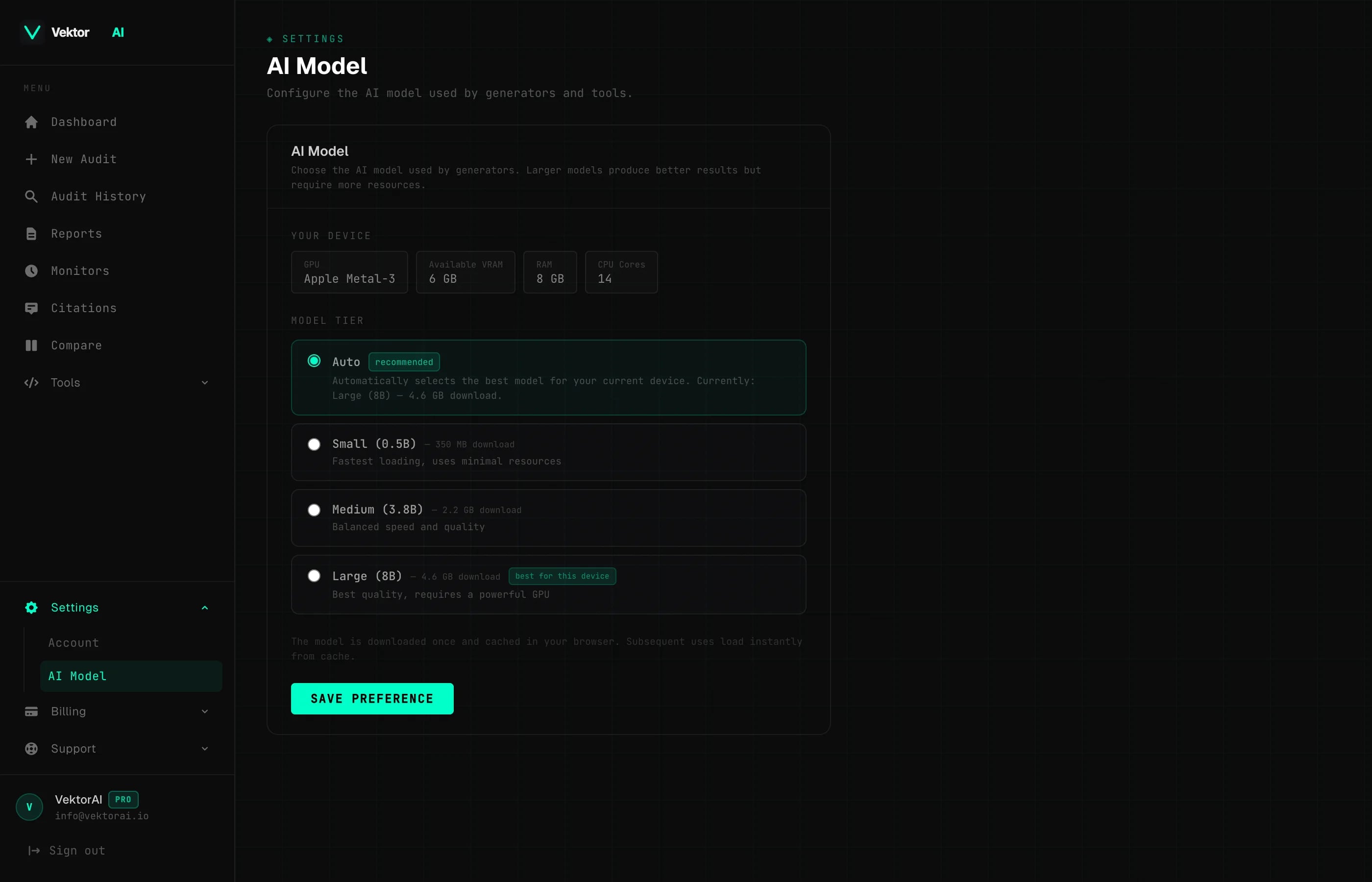
PROAccess AI model settings from Dashboard → Settings → AI Model. Choose which AI model runs locally in your browser for AI Fix and generator tools. All inference happens on your device — no data is sent to external servers.
Which AI model should I choose?
For example, selecting the Small model on a laptop with integrated graphics produces fixes in under 5 seconds, while the Large model may take 15–30 seconds. Based on WebGPU benchmarks published by the MLCEngine team, medium-sized models offer the best balance of quality and speed for most hardware, generating accurate outputs in under 10 seconds on mid-range GPUs.
Auto
Automatically selects the best model for your device based on your GPU, available VRAM, and system RAM. This is the default and recommended option for most users.
Small
0.5B parameters
350 MB download
Fastest inference, basic quality. Works on all WebGPU-capable devices with no minimum VRAM requirement. Best for quick fixes on lower-end hardware.
Medium
3.8B parameters
2.2 GB download · requires 3 GB VRAM
Balanced speed and quality. A good middle ground for most modern laptops and desktops with a dedicated or integrated GPU that has at least 3 GB of video memory.
Large
8B parameters
4.6 GB download · requires 6 GB VRAM
Best quality output, slowest inference. Recommended for devices with a powerful GPU and at least 6 GB of dedicated video memory. Produces the most accurate and detailed fixes.
Device Detection
When you open the AI Model settings page, VektorAI automatically detects your device capabilities and displays:
- +GPU vendor — the manufacturer of your graphics hardware (e.g. Apple, NVIDIA, AMD, Intel)
- +Available VRAM — the amount of video memory your GPU reports
- +System RAM — total available system memory
- +CPU cores — the number of logical processor cores detected
Model Caching
Models are downloaded once and cached in the browser using the Cache Storage API. After the initial download, subsequent loads are instant — the model loads directly from your local cache without any network requests.
- +First load requires a one-time download (size depends on the selected model tier)
- +Subsequent loads are instant from the browser cache
- +Clearing your browser cache or storage will require a fresh download on the next use
- +You can switch models at any time — each model is cached independently